
Navigate in your cases
Your case overview is the control center of Uniify. This is where you get a quick overview of your ongoing onboarding processes and access all your cases.
1. The Quick Overview
At the top, you’ll see four boxes summarizing your activities:

In Progress: See how many cases are currently active and awaiting action from the customer.
Completed: The number of cases where the customer has submitted all required information.
Approved: Cases that have been fully processed and manually approved.
Total: The total number of cases on your account.
2. The Case List
The case list provides specific details for each individual customer. Here are the columns you should know:
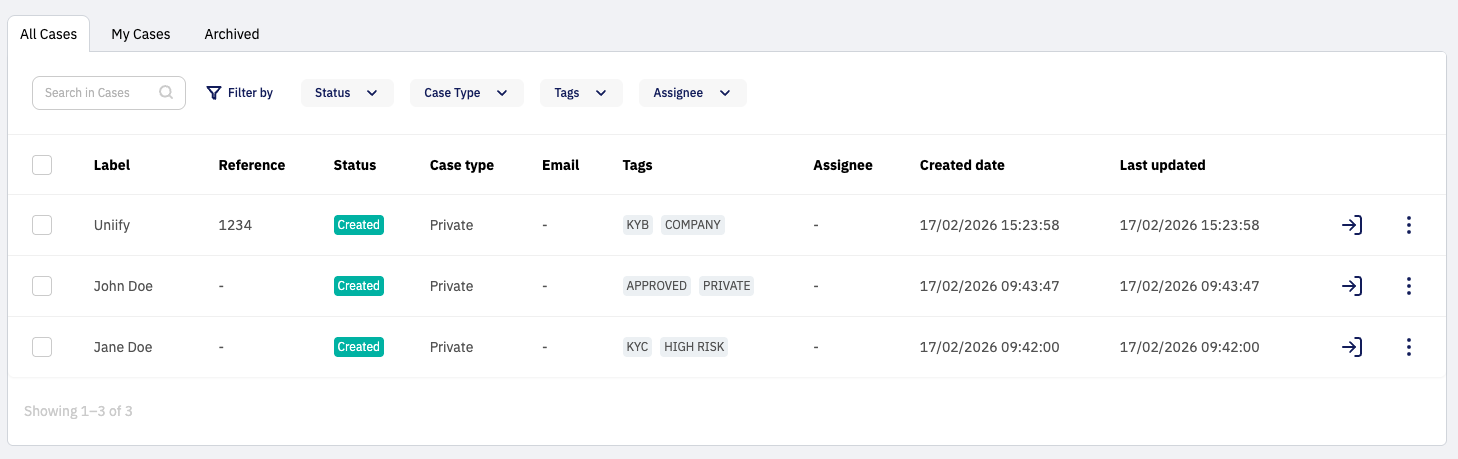
Label: The name of the person or company the case is about.
Reference: Your own unique label for the case (e.g., a case number).
Status: Tells you exactly where the case stands (e.g., "Created," "Expired," or "Completed").
Case Type: Shows the type of case (e.g., "Individual" or "Business").
Email: Displays the email address where the workflow was sent.
Tags: Shows any tags added to the case (e.g., "Company," "KYC," or "High Risk").
Assignee: Shows who in your team created or is managing the case.
Created date: Shows when the case was created in the system.
Last Updated: Shows when there was last activity on the case.
Go to case: To open a case, simply click the arrow on the far right or click directly on the Label.
Archive cases: You can archive a case by clicking the three dots on the far right. To archive multiple cases at once, select the checkboxes on the left and click Archive in the top menu.
3. Find What You Need
If you have many cases, use the smart tools above the list:
Tabs: You can easily switch tabs to filter all cases, your own cases or archived cases

Search Field: Find a case instantly by typing the name or reference.

Filters: Sort your list based on Status, Case Type, Tags, or Assignee. This is where your Tags become especially useful for organizing your daily tasks!

Ready to get started?
Now that you have a handle on the dashboard, it’s time to send your first invitation and see the system in action! See how to create your first case here
Unsure about a feature?
We know a new system takes some getting used to. If you can't find what you're looking for or are unsure about a button, reach out to us in the chat or at support@uniify.io - we're ready to guide you.